Optimize financial data management with CSV in accounting

Managing financial data across systems shouldn’t feel like deciphering hieroglyphics. Yet many accounting professionals spend hours wrestling with incompatible formats, import errors, and data corruption. CSV emerges as the unsung hero in this chaos, offering a standardized bridge between banks, accounting software, and spreadsheets. This article explores how mastering CSV transforms your workflows, eliminates common pitfalls, and unlocks efficiency gains that compound across every reconciliation, audit, and month-end close. You’ll discover practical techniques to validate data, automate imports, and leverage CSV’s simplicity for robust financial management.
Table of Contents
- Key takeaways
- What is the role of CSV in accounting?
- Core CSV mechanics critical to accounting workflows
- Navigating challenges and expert tips for efficient CSV use
- Leveraging automation and tools for scalable CSV processing
- Streamline your accounting data with BankStatementFlow
- Frequently asked questions
Key Takeaways
| Point | Details |
|---|---|
| Standardized data bridge | CSV provides a lightweight universal format that moves transactional information between banks, accounting software, and spreadsheets. |
| Header accuracy matters | Consistent header formatting prevents mapping errors that can derail imports. |
| Automation boosts efficiency | Automated validation and imports reduce manual effort and help ensure regulatory compliance. |
| Audits favor CSV | Auditors value CSV for a clean, unaltered record of financial activity across systems. |
What is the role of CSV in accounting?
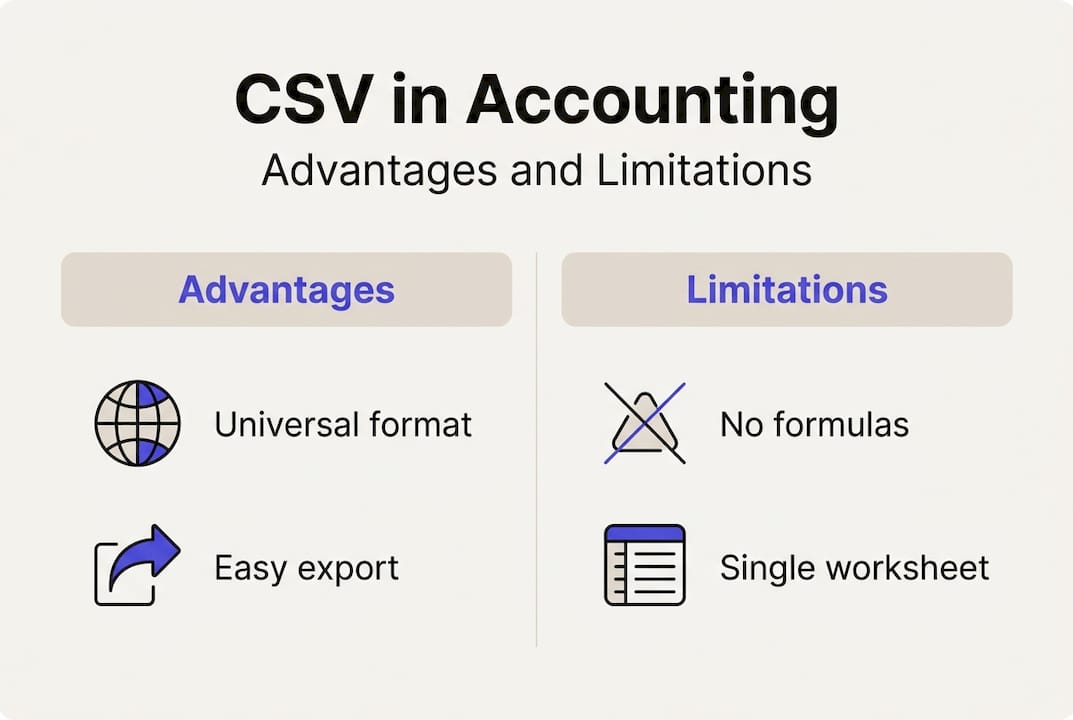
CSV files serve as a standardized, lightweight format for transferring transactional and financial data between accounting systems, banks, and spreadsheets. This universality makes CSV the backbone of modern financial data exchange. When you export transactions from your bank or import journal entries into QuickBooks, CSV handles the heavy lifting without proprietary software requirements.
The format’s simplicity delivers tangible benefits. CSV files open instantly in any text editor or spreadsheet application, making troubleshooting straightforward. Unlike Excel files with embedded formulas and formatting, CSV contains pure data, eliminating compatibility headaches when moving information between systems. This lean structure also means faster processing speeds, crucial when handling thousands of transactions during month-end closes.
CSV excels at specific accounting tasks:
- Importing bank transactions for reconciliation across multiple accounts
- Exporting general ledger data for external audits and compliance reviews
- Transferring payroll information between HR systems and accounting platforms
- Batch uploading invoice data from procurement systems
- Sharing financial reports with stakeholders who lack specialized software
The format’s limitations matter too. CSV strips away Excel’s formulas, pivot tables, and multiple worksheets. You can’t embed calculations or create dynamic reports within a CSV file. However, this constraint becomes an advantage for raw data exchange. By focusing solely on structured information, CSV reduces the risk of formula errors propagating through your financial systems. Understanding CSV export in accounting helps you leverage this balance effectively.
Consistent transactional data exchange proves critical during audits. Auditors prefer CSV because it provides a clean, unaltered record of financial activity. The format’s transparency means every field remains visible and verifiable, supporting compliance requirements across industries. For businesses managing multi-system environments, CSV acts as the common language that keeps data flowing smoothly between platforms.
Core CSV mechanics critical to accounting workflows
Proper CSV formatting determines whether your import succeeds or fails spectacularly. Standardized header formatting with fields like transaction date in YYYY-MM-DD format, description, and separate debit/credit columns ensures accounting software can parse your data correctly. Inconsistent headers cause mapping errors that ripple through your entire dataset, turning a five-minute import into a two-hour debugging session.
Mandatory fields form the foundation of reliable CSV imports:
- Date: Always use YYYY-MM-DD format to avoid regional confusion between MM/DD/YYYY and DD/MM/YYYY
- Payor/Payee: Text field limited to 255 characters for vendor or customer names
- Transaction ID: Unique identifier preventing duplicate entries during batch imports
- Type: Category code (debit, credit, transfer) for proper account classification
- Amount: Numeric value with consistent decimal notation, typically two decimal places
- Memo: Description field supporting up to 500 characters for transaction details
Field length limits prevent data truncation. When vendor names exceed character limits, accounting systems either reject the import or silently cut off information, creating incomplete records. Testing your CSV structure with edge cases catches these issues before they affect production data.
| Field Type | Format Standard | Common Error | Prevention |
|---|---|---|---|
| Date | YYYY-MM-DD | Regional format confusion | Validate format before export |
| Amount | Numeric with 2 decimals | Comma as decimal separator | Use period consistently |
| Account Code | Alphanumeric | Leading zeros dropped | Store as text with quotes |
| Description | Text, 500 char max | Special characters breaking import | Escape quotes and commas |
Encoding choices impact data integrity more than most accountants realize. UTF-8 encoding handles international characters, currency symbols, and special notation without corruption. When you export CSV files in legacy encodings like ASCII or Windows-1252, accented characters in vendor names or foreign currency symbols transform into gibberish upon import. Always specify UTF-8 with BOM (Byte Order Mark) for maximum compatibility.

Delimiter selection affects parsing accuracy. While commas serve as the standard CSV delimiter, regions using comma as a decimal separator require semicolons instead. Mixing delimiters within a single file guarantees import failure. Preview your CSV in a text editor to verify consistent delimiter usage throughout the entire file. Understanding financial data formats and efficient conversion helps you navigate these technical requirements.
Column mapping requires careful attention during import setup. Most accounting platforms display a preview screen where you match CSV columns to system fields. Rushing through this step causes misaligned data, such as transaction descriptions appearing in amount fields or dates landing in memo columns. Take time to verify each mapping, especially when importing from new data sources.
Pro Tip: Always validate CSV encoding and delimiters before uploading to avoid common data corruption issues. Open your file in a plain text editor like Notepad++ to inspect the raw structure. This quick check catches problems invisible in Excel’s preview mode.
Navigating challenges and expert tips for efficient CSV use
Delimiter conflicts create the most frequent import headaches. When your transaction descriptions contain commas (like “Office supplies, paper, pens”), the CSV parser interprets each comma as a new field separator. This splits one description across multiple columns, misaligning all subsequent data. The solution involves enclosing text fields in double quotes, but inconsistent quoting practices still cause failures. Edge cases include delimiter conflicts between comma versus semicolon usage, requiring careful attention to regional settings.
Encoding mismatches corrupt data in subtle ways. A vendor name like “Café Supplies” exports correctly but imports as “Café Supplies” when encoding shifts between systems. These corruption patterns multiply across large datasets, creating hundreds of malformed records. UTF-8 with BOM provides the most reliable encoding, but legacy systems sometimes default to Windows-1252 or ISO-8859-1, necessitating explicit encoding specification during export.
Problematic characters extend beyond simple punctuation:
- Unescaped quotes within quoted fields break parsing logic
- Line breaks inside description fields split single records across multiple rows
- Tab characters masquerading as spaces cause invisible alignment issues
- Currency symbols without proper encoding render as question marks or boxes
- Negative numbers formatted with parentheses instead of minus signs confuse numeric validation
Large CSV files introduce corruption risks that smaller datasets avoid. Files exceeding 50,000 rows strain Excel’s processing capacity, sometimes causing silent data loss in the final rows. Memory constraints during export can truncate files mid-record, creating incomplete transactions that pass initial validation but fail during reconciliation. Batching strategies mitigate these risks by splitting large exports into manageable chunks of 10,000 to 25,000 records each.
| Challenge Type | Symptom | Expert Solution |
|---|---|---|
| Delimiter confusion | Columns misaligned after import | Use tab or pipe delimiters for comma-heavy data |
| Encoding mismatch | Special characters corrupted | Standardize on UTF-8 with BOM across all systems |
| Duplicate records | Same transaction imported multiple times | Implement unique transaction ID validation |
| Multi-currency issues | Exchange rates missing or incorrect | Include separate currency code and amount columns |
Expert practitioners recommend using unique IDs rather than names for vendor and account references. Names change, creating orphaned records when “ABC Company” becomes “ABC Company Inc.” Numeric or alphanumeric IDs remain stable, ensuring referential integrity across system updates. This approach reduces import errors by eliminating fuzzy matching logic that guesses at vendor identity.
Automated validation scripts catch errors before they reach your accounting system. Simple Python or PowerShell scripts verify date formats, numeric ranges, required field presence, and character encoding. Running these checks immediately after export provides fast feedback, allowing corrections while the source data remains accessible. Building validation into your standard workflow prevents the frustration of discovering problems only after a failed import.
Audit trails support both compliance and troubleshooting. Logging every CSV import with timestamps, source files, record counts, and error summaries creates a paper trail for regulatory review. When discrepancies emerge months later, these logs help trace problems to specific imports. Maintaining financial data management with proper checklists and automation ensures consistent documentation practices.
Pro Tip: Implement fitness for use validations prioritizing operational readiness over perfect data cleanliness. Focus validation rules on fields that directly impact financial calculations and reporting. A missing memo field rarely justifies rejecting an entire import, while an invalid amount field absolutely does. This pragmatic approach balances data quality with processing efficiency.
Leveraging automation and tools for scalable CSV processing
Automation transforms CSV handling from a manual chore into a streamlined operation. Methodologies include exporting clean reports with metadata and filters, then automating via scripts, APIs, or middleware to validate schema and data types before import. Batch importing eliminates repetitive clicking through import wizards, saving hours during month-end processing when transaction volumes spike.
Schema validation catches structural problems before data enters your accounting system. Automated scripts verify column counts, header names, data types, and required field presence. When a bank changes its export format by adding or removing columns, schema validation immediately flags the discrepancy. This early detection prevents partial imports that corrupt your financial records.
APIs and middleware create seamless data flows between disparate systems. Rather than manually downloading bank statements as CSV files and uploading them to QuickBooks, API integrations fetch transactions automatically and map them to the correct accounts. Middleware platforms like Zapier or custom integration services orchestrate these connections, reducing manual touchpoints to zero for routine transactions.
Implementing automated CSV processing follows a structured approach:
- Export clean data with appropriate metadata and filters applied at the source system
- Validate schema structure and data types using automated scripts before processing
- Map CSV columns to destination system fields using saved templates for consistency
- Import data via automated scripts, APIs, or scheduled batch jobs
- Generate summary reports showing record counts, errors, and validation results
- Archive source CSV files with timestamps for audit trail maintenance
Maintaining audit trails satisfies regulatory compliance requirements. GDPR and CCPA mandate documentation of data processing activities, including CSV imports containing personal financial information. Automated logging captures who imported what data, when, from which source, and what transformations occurred. This documentation proves invaluable during audits or when investigating discrepancies.
Automation benefits compound across accounting workflows:
- Reduced manual errors from eliminating repetitive data entry tasks
- Faster month-end closes through parallel processing of multiple CSV imports
- Improved data consistency by applying uniform validation rules across all imports
- Enhanced compliance through comprehensive audit trails and version control
- Freed staff capacity to focus on analysis rather than data manipulation
Error detection improves dramatically with automated monitoring. Scripts flag anomalies like duplicate transaction IDs, out-of-range amounts, or missing required fields before bad data pollutes your general ledger. Setting up email alerts for validation failures ensures problems receive immediate attention rather than surfacing during reconciliation.
Integration with accounting software varies by platform. Cloud-based systems like Xero and QuickBooks Online offer robust APIs supporting automated imports. Desktop applications may require file-based automation using watched folders where CSV files trigger automatic import routines. Understanding your platform’s capabilities shapes your automation strategy. Learning how to automate financial documents provides practical implementation guidance.
Scalability becomes critical as transaction volumes grow. Manual CSV processing that works for 500 monthly transactions collapses under 5,000. Automation scales linearly, handling increased volumes without proportional staff increases. This scalability supports business growth without ballooning accounting department headcount.
Streamline your accounting data with BankStatementFlow
Managing CSV workflows gets exponentially easier when you have the right conversion tools. Whether you’re extracting data from bank statements, receipts, or invoices, seamless format conversion eliminates manual data entry bottlenecks that slow down your accounting processes.
BankStatementFlow delivers AI-powered document processing that converts PDF bank statements to Excel and CSV formats with up to 99% accuracy. The platform handles password-protected files, scanned images, and even smartphone photos, eliminating the scanner dependency that constrains traditional workflows. Integration with major accounting software means your converted data flows directly into QuickBooks, Xero, or NetSuite without intermediate steps. Try our specialized PDF receipt to Excel and CSV converter for expense management or explore the comprehensive bank statement converter online tool to see how automation transforms your document processing efficiency.
Frequently asked questions
Why is CSV preferred over Excel for raw financial data exchange?
CSV’s lightweight, text-based structure ensures universal compatibility across accounting platforms, banks, and spreadsheets without proprietary software requirements. The format eliminates Excel’s compatibility issues with different versions and operating systems, making it ideal for batch processing and automated imports. Excel remains superior for analysis requiring formulas, pivot tables, and multiple worksheets, but accounting workflows prioritize CSV for importing and exporting transaction data where simplicity and reliability matter most.
What are the common pitfalls when importing CSV files into accounting software?
Incorrect header formatting or delimiter misuse causes mapping errors that misalign entire datasets, placing descriptions in amount fields or dates in memo columns. Encoding mismatches corrupt special characters like currency symbols and accented letters, turning vendor names into gibberish. Unescaped quotes or multi-line fields break parsing logic, splitting single records across multiple rows and creating incomplete transactions. Always preview CSV files in a text editor before import to verify structure, and use unique transaction IDs instead of vendor names to prevent reference mismatches when names change.
How can automation improve CSV data handling in accounting?
Automation reduces manual errors by applying consistent validation rules across all imports, catching problems like duplicate transaction IDs or out-of-range amounts before they corrupt your general ledger. Scripts, APIs, and middleware validate schema structure, map columns to destination fields, and import data seamlessly without repetitive clicking through import wizards. Automated audit trails ensure compliance with regulations like GDPR and CCPA by documenting every import with timestamps, source files, and error summaries. Integrating automation into monthly closes and reconciliations cuts processing time dramatically, freeing accounting staff to focus on analysis and strategic tasks rather than data manipulation.