
Many accountants struggle with exported financial data, unsure whether their CSV files will import correctly or why certain transactions appear corrupted after export. CSV export is a fundamental accounting tool that enables offline transaction analysis, seamless data transfer between systems, and efficient reconciliation workflows. This guide clarifies what CSV export means in accounting contexts, explains critical formatting requirements, and shows you how to leverage export functionality effectively for improved data management and system interoperability across your financial operations.
Table of Contents
- Understanding Csv Export In Accounting Systems
- Key Technical Considerations And Formatting Requirements For Csv Exports
- Overcoming Challenges And Optimizing Csv Export Workflows
- Comparing Formatted And Unformatted Csv Exports And Their Practical Applications
- Explore Bankstatementflow’s Powerful Data Conversion Tools
- Frequently Asked Questions About Csv Export In Accounting
Key takeaways
| Point | Details |
|---|---|
| CSV export enables offline analysis | Accountants can review transactions, reconcile accounts, and prepare data imports without staying connected to accounting systems. |
| Formatting and encoding are critical | UTF-8 encoding and proper date formats prevent import errors and data corruption during system transfers. |
| Formatted versus unformatted exports | Formatted exports simplify reporting while unformatted exports preserve data structure for accurate re-imports. |
| Role restrictions apply | Administrator permissions are often required to perform CSV exports in enterprise accounting platforms. |
| Export size affects performance | Large data sets may require segmented exports or prioritized processing to avoid timeouts and failures. |
Understanding CSV export in accounting systems
CSV export in NetSuite produces .csv files containing data from various accounting lists, reports, and transaction records. These files serve as portable containers for financial information, allowing accountants to work with data outside their primary accounting platform. The comma-separated values format creates a simple text structure where each line represents a record and commas separate individual field values.
Accountants regularly export customers, vendors, transactions, expense categories, inventory items, and reconciliation data to CSV format. This versatility makes CSV the universal language for financial data exchange. You can open these files in spreadsheet applications, import them into different accounting systems, or process them with custom scripts and automation tools.
The primary advantage of CSV export lies in its interoperability. When you need to export financial data to Excel for detailed analysis, CSV format ensures compatibility across platforms and software versions. Unlike proprietary formats that lock data into specific applications, CSV files work everywhere.
Accountants review transactions offline using exported CSV files to identify discrepancies, validate entries, and prepare reconciliation reports without consuming system resources. This offline capability proves essential during month-end close periods when system performance matters most. You can distribute CSV files to team members who lack direct system access, enabling collaborative review and validation processes.
Common data sets exported from accounting platforms include:
- General ledger transactions with posting dates, accounts, and amounts
- Accounts receivable aging reports showing customer balances and payment terms
- Vendor payment histories for cash flow analysis and forecasting
- Inventory valuation reports with quantities, costs, and locations
- Tax preparation data organized by jurisdiction and reporting period
- Payroll summaries with employee compensation and withholding details
Pro Tip: Before exporting large transaction sets, filter your data by date range or account to reduce file size and improve processing speed.
Key technical considerations and formatting requirements for CSV exports
Specific formatting and constraints apply to each column in CSV files, including date formats, character limits, and encoding standards. Date values must follow consistent patterns such as MM/DD/YYYY, YYYY-MM-DD, or DD-MMM-YYYY throughout the entire file. Mixing date formats within a single CSV export causes import failures and data mismatches.
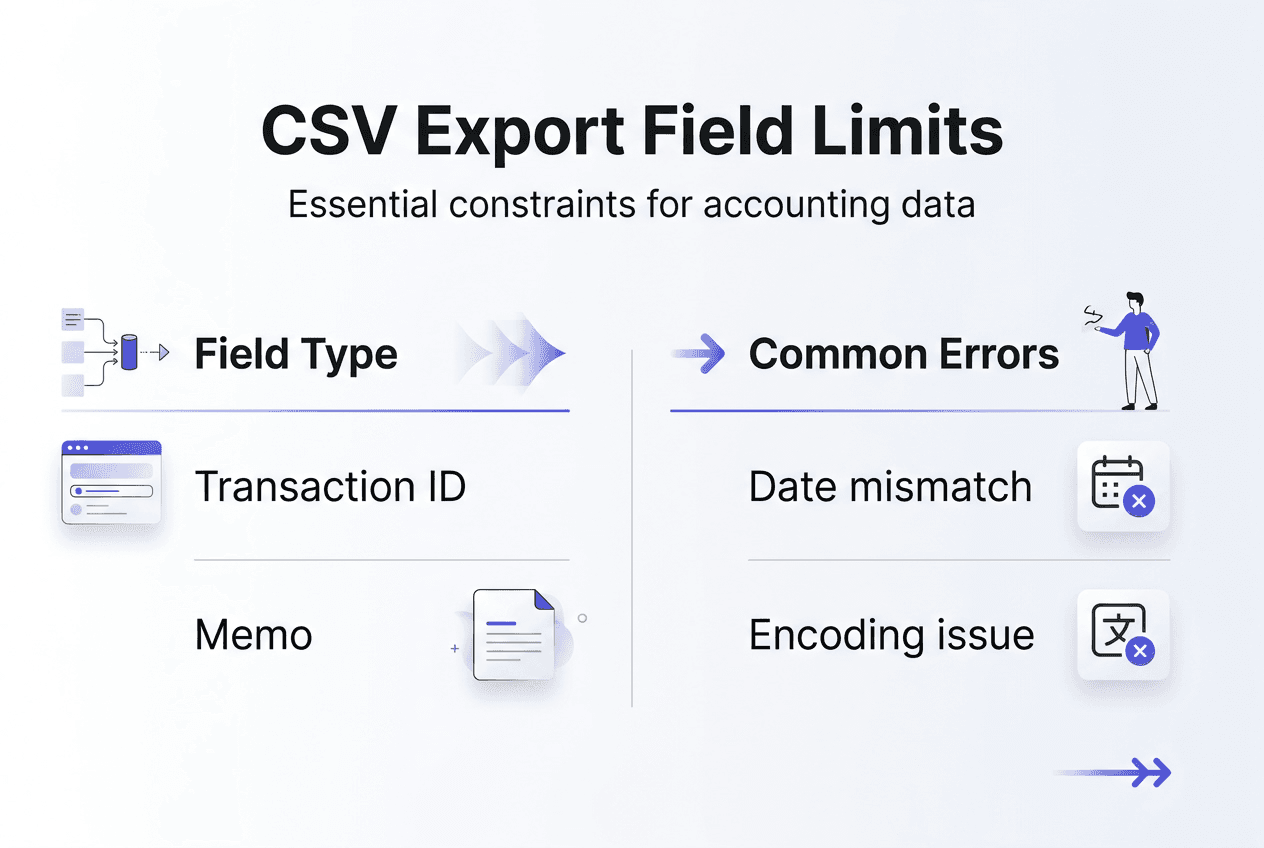
Transaction ID fields typically accept alphanumeric characters up to 30 positions. Memo fields allow longer text entries, usually 300 to 999 characters depending on the target system. Customer ID and Vendor ID columns require exact matches to existing records in your accounting database. Amount columns use positive numbers for debits and negative numbers for credits, though some systems reverse this convention for specific account types.
CSV files must be UTF-8 encoded for successful import into modern accounting platforms. This encoding standard handles international characters, currency symbols, and special punctuation that appear in financial data. Legacy encoding formats like ASCII or Windows-1252 cause character corruption and import rejections.
Critical formatting requirements include:
- Single account limitation: Each CSV file contains transactions for only one account to maintain data integrity
- Column order consistency: Headers must match the exact sequence expected by the import template
- Decimal precision: Amount fields require two decimal places for currency values
- Empty field handling: Blank cells should contain nothing, not spaces or placeholder text
- Line ending standards: Use standard line breaks compatible with both Windows and Unix systems
When preparing CSV files for bank statement to CSV conversion, verify that transaction dates fall within the current fiscal period. Future-dated or historical transactions beyond retention policies trigger validation errors during import. Account numbers must exist in your chart of accounts before importing transactions that reference them.
| Field Type | Maximum Length | Format Example | Common Errors |
|---|---|---|---|
| Transaction ID | 30 characters | INV-2026-001234 | Duplicate IDs, special characters |
| Date | 10 characters | 2026-03-15 | Inconsistent formats, invalid dates |
| Amount | 15 digits | 1234.56 | Extra decimals, currency symbols |
| Memo | 999 characters | Payment for services | Line breaks, quotes |
Pro Tip: Open your CSV file in a text editor before importing to verify encoding and spot formatting issues that spreadsheet applications might hide or auto-correct.
Overcoming challenges and optimizing CSV export workflows
The CSV export function in NetSuite is restricted to users with the Administrator role, limiting who can extract financial data from the system. This security measure prevents unauthorized data access but creates workflow bottlenecks when accountants need exports during month-end close. Organizations must balance security requirements with operational efficiency by carefully managing role assignments.
Large exports exceeding 10,000 records or 50MB often time out during processing. The system cannot maintain connections long enough to complete massive data transfers in a single operation. You need to segment large exports by date ranges, account groups, or transaction types to stay within processing limits. Most accounting platforms provide interface buttons that trigger smaller, focused exports rather than attempting to extract entire data sets at once.
Excel changes numeric values exceeding 16 digits to scientific notation when opening CSV files directly. Account numbers, transaction IDs, and reference numbers frequently exceed this limit in enterprise systems. The automatic conversion corrupts data and makes reconciliation impossible. Import CSV files using Excel’s data import wizard instead of double-clicking to open them, or use alternative office suites that preserve long numeric values.
Exports now use prioritized processing to handle size and complexity more efficiently, queuing smaller requests ahead of large batch exports. This optimization prevents single large exports from blocking other users’ data access needs. The system analyzes export parameters and allocates processing resources based on estimated completion time and user priority levels.
Steps to troubleshoot failed CSV exports:
- Verify your user role has export permissions for the specific data type you are requesting
- Check saved search criteria for syntax errors or references to deleted fields
- Reduce the date range or record count to identify if size limitations are causing failures
- Review customization scripts that might interfere with standard export processes
- Clear browser cache and retry the export in a private browsing window
- Contact system administrators to review server logs for timeout or memory errors
Customizations and third-party integrations sometimes conflict with native export functionality. Saved searches with complex formulas or multiple joined tables take longer to process and may exceed timeout thresholds. Simplify your search criteria or break complex exports into multiple simpler requests.
“The key to reliable CSV exports is understanding your system’s processing limits and designing export requests that stay well within those boundaries. Accountants who segment large data sets proactively avoid the frustration of failed exports during critical reporting periods.”
Pro Tip: Schedule large CSV exports during off-peak hours when system resources are available and processing queues are shorter, typically early morning or late evening.
Comparing formatted and unformatted CSV exports and their practical applications
The formatted data option exports a simplified view of transactions for Excel, including only columns visible in your current screen layout. This export type prioritizes readability and presentation over data completeness. Formatted exports apply number formatting, date localization, and text alignment that make spreadsheets immediately usable for reporting and presentation purposes.
The unformatted data option exports transactions suitable for re-import into reconciliation systems, preserving all field values in their raw database format. This export type maintains data integrity by avoiding formatting conversions that could alter numeric precision or date values. Unformatted exports include hidden fields and system identifiers necessary for accurate data synchronization.

Choosing between formatted and unformatted exports depends on your intended use case. When preparing executive reports or distributing data to stakeholders who need readable spreadsheets, formatted exports save time by eliminating manual formatting work. When transferring data between systems or preparing reconciliation imports, unformatted exports prevent data loss and conversion errors.
Formatted exports work well for:
- Monthly financial reports shared with management teams
- Budget versus actual variance analysis presentations
- Customer account summaries for sales team review
- Ad hoc data requests from auditors or regulators
Unformatted exports are essential for:
- Migrating transaction histories between accounting platforms
- Loading reconciliation data into specialized audit tools
- Backing up financial records for disaster recovery purposes
- Feeding data into custom analytics and reporting systems
| Export Type | Data Completeness | Formatting Applied | Best Use Case | Re-import Capability |
|---|---|---|---|---|
| Formatted | Visible columns only | Yes | Reporting and analysis | Limited |
| Unformatted | All fields | No | System integration | Full |
The distinction between export types affects downstream accounting processes significantly. Formatted exports may exclude transaction identifiers, audit timestamps, or system flags that reconciliation processes require. Attempting to re-import formatted data often fails validation because required fields are missing or values have been converted to incompatible formats.
When working with bank statement processing workflows, unformatted exports maintain the exact transaction details needed for automated matching and reconciliation. Formatted exports introduce rounding differences and date format variations that break automated matching rules.
Pro Tip: Maintain separate export templates for reporting purposes and system integration tasks to avoid confusion and ensure you always use the appropriate format for each workflow.
Explore BankStatementFlow’s powerful data conversion tools
While CSV export from your accounting system handles internal data extraction, you often receive financial documents from banks, vendors, and customers in PDF format. Converting these PDFs to CSV for integration with your accounting workflows traditionally requires manual data entry or expensive OCR software.
BankStatementFlow’s AI-powered PDF to Excel and CSV converter automates this conversion process with up to 99% accuracy, eliminating manual data entry and reducing errors that compromise financial data integrity. The platform handles bank statement to CSV conversion, invoice processing, and PDF inventory to CSV transformation through advanced machine learning algorithms optimized for financial document structures. Accountants working with varied financial documents gain streamlined workflows that complement their existing CSV export processes, enabling faster month-end close and more efficient reconciliation cycles.
Frequently asked questions about CSV export in accounting
What user role is required for CSV export in NetSuite?
Only users assigned the Administrator role can perform CSV exports in NetSuite due to security restrictions on bulk data extraction. Organizations can grant export permissions through custom roles if they need to enable non-administrator users, but this requires careful security review. Contact your NetSuite administrator to request export access if your current role lacks this capability.
How do I prevent Excel from changing long numbers to scientific notation when opening CSV files?
Use Excel’s data import wizard instead of double-clicking CSV files to open them directly. Select the columns containing long numbers and format them as text before importing, which preserves the original values without conversion. Alternatively, use Google Sheets or LibreOffice Calc, which handle long numeric values more reliably than Excel.
Can I include multiple accounts in a single CSV export file?
No, accounting systems typically restrict CSV exports to transactions from a single account per file to maintain data integrity and simplify import validation. If you need data from multiple accounts, perform separate exports for each account and combine them manually if necessary. This limitation prevents cross-account data corruption during import processes.
What encoding should a CSV file have to ensure successful import into accounting software?
UTF-8 encoding is the standard requirement for modern accounting platforms in 2026, supporting international characters and special symbols in financial data. Legacy encodings like ASCII or Windows-1252 cause character corruption and import failures. Save your CSV files with UTF-8 encoding using your text editor or spreadsheet application’s export options.
What are the main differences between formatted and unformatted CSV exports?
Formatted exports include only visible columns with applied number and date formatting, optimized for reporting and presentation in spreadsheets. Unformatted exports contain all database fields in raw format, preserving data integrity for system re-imports and reconciliation processes. Choose formatted exports for analysis tasks and unformatted exports when transferring data between systems or preparing reconciliation imports.