Step by Step Bank Statement Processing for Analysts

Manual bank statement processing can quickly turn into a maze of errors, missed transactions, and wasted hours. For financial analysts at mid-sized technology companies, the task demands meticulous accuracy and secure handling of sensitive data. With structured workflows and custom mapping of incoming file formats, automation offers a practical solution, helping you achieve clean extraction, precise reconciliation, and reliable exports that support confident decision-making.
Table of Contents
- Step 1: Prepare Bank Statements for Digital Extraction
- Step 2: Upload and Configure Processing Settings
- Step 3: Review and Validate Extracted Data
- Step 4: Export Structured Financial Data Securely
Quick Summary
| Key Point | Explanation |
|---|---|
| 1. Organize Bank Statements Effectively | Use a clear naming convention for files to easily track processed statements and avoid confusion later on. |
| 2. Configure Processing Settings Correctly | Accurate setup of processing parameters ensures cleaner extraction results, minimizing processing errors and saving time. |
| 3. Validate Extracted Data Thoroughly | Carefully compare extracted data against original statements to identify errors and ensure the integrity of financial records. |
| 4. Securely Export Financial Data | Select appropriate formats and apply security measures during export to protect sensitive information from unauthorized access. |
| 5. Automate where Possible | Setting up automated export workflows reduces manual handling, ensures consistency, and improves audit trails for financial data management. |
Step 1: Prepare Bank Statements for Digital Extraction
Before you send your bank statements into a digital processing system, preparation is everything. Spending 10 minutes on this step prevents hours of troubleshooting later. Your goal here is to ensure each document is clean, readable, and formatted for accurate data extraction.
Start by gathering all the bank statements you need to process. Make sure you have complete statements, not partial pages or scattered documents. Check that each file includes the full date range, transaction list, and account summary section. Missing pieces mean missing data later.
Next, examine the document quality. Bank statements arrive in different formats—PDFs from online banking, scanned physical copies, or even smartphone photos. Look for clarity issues like faded text, poor scans, or unusual orientations. If a document is too dark or blurry, rescan it or request a cleaner copy from your bank.
Organize your files with a clear naming convention. Use a format like “BankName_AccountNumber_StartDate_EndDate.pdf” so you can track which statements you’ve already processed. This becomes critical when handling multiple accounts or months of data.
Here’s a summary comparing common digital bank statement sources and their impact on data extraction quality:
| Source Type | Typical Issues | Extraction Reliability | Suggested Preparation |
|---|---|---|---|
| Native PDF download | Usually high quality | Very reliable | Check for encryption |
| Scanned paper copy | Blurry or skewed text | Moderate reliability | Rescan or enhance image |
| Smartphone photo | Glare, shadows, angles | Low to moderate | Crop and brighten image |
| Emailed screenshots | Resolution varies | Unpredictable | Save as PDF, clarify text |
Here’s what you should check:
- File format compatibility: PDFs work best, but bank statement parsing also handles images and screenshots
- Complete document: Ensure all pages are included with no missing transactions
- Readable text: No watermarks, heavy stamps, or encryption blocking the content
- Standard layout: Single-statement files process more accurately than bundled documents
If your statements are password-protected or encrypted, decrypt them first. Most digital extraction systems handle this, but removing barriers upfront reduces processing errors. Remove any unnecessary annotations or post-it notes if you’ve scanned physical statements.
Verify the date ranges don’t overlap between statements. Processing the same transactions twice creates reconciliation headaches. Cross-reference your file list against your banking records to confirm you have every statement you need.
Clean, organized statements are the foundation of accurate extraction—garbage in, garbage out applies here.
Pro tip: Batch similar statements together (same bank, consecutive months) and process them in one upload session for faster processing and easier tracking.
Step 2: Upload and Configure Processing Settings
Now that your statements are prepared, it’s time to upload them and configure how the system will process them. This step determines accuracy, speed, and how well the extraction aligns with your company’s specific needs. Getting the settings right means cleaner data on the first pass.
Start by accessing your processing platform and selecting the upload option. Choose all the bank statements you’ve organized and prepared in Step 1. Most systems allow batch uploads, so you can load multiple files at once rather than processing them one by one.

Once uploaded, you’ll configure your processing parameters. This is where custom mapping of incoming file formats comes into play. You’re essentially telling the system where to find specific data points in your bank statements.
Consider these key configuration choices:
- Account mapping: Link each uploaded statement to the correct general ledger account
- Date range settings: Confirm the processing window matches your accounting period
- Transaction matching rules: Set thresholds for automatic matching of debits and credits
- Currency handling: Specify how to process multi-currency transactions if applicable
- Field extraction priorities: Tell the system which data fields matter most for your workflow
Define your authorization levels and access controls. Not everyone on your team needs to approve transactions or modify settings. Restrict sensitive functions like changing matching rules or exporting reconciliation reports to designated financial analysts.
Review the preview of extracted data before finalizing. Most platforms show you a sample of how the system interpreted your statements. Check that account numbers, dates, and amounts appear correctly. If something looks off, adjust your settings and preview again.
Misconfigured settings catch errors early, but proper configuration prevents errors entirely.
Pro tip: Save your configuration settings as a template so you can reuse them for future processing cycles without reconfiguring from scratch every month.
Step 3: Review and Validate Extracted Data
Extraction is complete, but your work isn’t finished yet. This step is where you catch errors before they ripple through your financial records. You’re verifying that the system extracted data accurately and that everything aligns with your original bank statements.
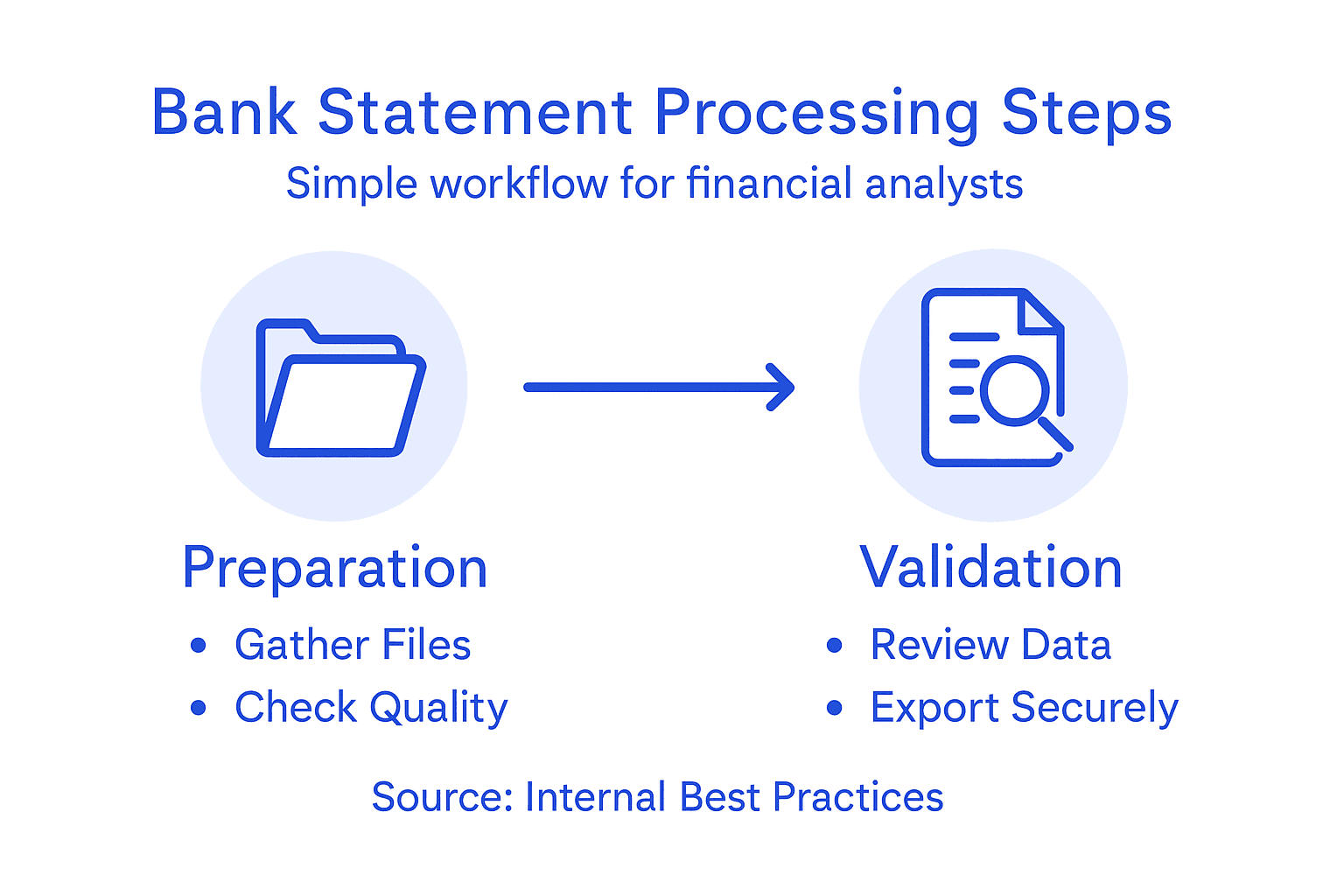
Start by examining the extracted transactions in detail. Open the output file and compare a sample of extracted records against your original statements. Look for account numbers, transaction amounts, dates, and descriptions. Even small discrepancies matter in financial analysis.
Check for common extraction errors. Sometimes dates get reversed, amounts include extra decimals, or merchant names are truncated. Identify patterns in errors—if all transactions from one bank are misaligned, the configuration may need adjustment. If errors are scattered and minimal, they’re likely one-off anomalies.
Validate your data completeness:
- Transaction count: Does the number of extracted transactions match your statement?
- Date range coverage: Are all transactions within the expected period?
- Balance reconciliation: Do opening and closing balances align?
- Currency consistency: Multi-currency transactions display correctly?
- Field accuracy: All required fields populated without blanks or errors?
When exporting financial data to Excel, you can perform additional validation using formulas and pivot tables. Cross-reference totals, run SUMIF functions to verify transaction categories, and spot check high-value items manually.
Document any discrepancies you find. Create a log noting which transactions failed validation and why. This helps you refine your processing settings for future batches and provides an audit trail if questions arise later.
Approve the data only after validation is complete. Most platforms include an approval or sign-off function that marks the extraction as verified. This step protects your reconciliation process and maintains data integrity.
One missing or incorrect transaction can unbalance your entire reconciliation—validation isn’t optional, it’s essential.
Pro tip: Run batch validation checks by exporting a sample of extracted data and comparing it against your statements using conditional formatting in Excel to highlight discrepancies quickly.
Step 4: Export Structured Financial Data Securely
Your validated data is ready to move into your financial systems. This step focuses on getting that data out safely without compromising security or compliance. The export process matters as much as the extraction itself because sensitive financial information requires protection at every stage.
Start by selecting your export format. Your choice depends on where the data is headed. Excel and CSV work well for immediate analysis and team sharing. JSON and XML integrate seamlessly with enterprise systems and APIs. Choose the format that fits your downstream workflow.
Before exporting, apply final data transformations if needed. Standardize date formats, round currency amounts appropriately, and remove any unnecessary fields. Converting extracted data into standardized formats compatible with your analytics platforms ensures clean integration downstream.
Here’s a quick reference of secure export formats and their ideal use cases:
| Export Format | Ideal Use Case | Security Features |
|---|---|---|
| Excel (XLSX) | Manual analysis and reporting | Password protection |
| CSV | Data import to accounting apps | Easy encryption, simple |
| JSON | API/system integration | Supports field masking |
| XML | Enterprise system transfer | Schema validation |
Consider these security measures during export:
- Encryption in transit: Use secure transfer protocols like SFTP or encrypted email
- User access controls: Restrict who can view or download exported files
- Audit logging: Maintain records of who exported what and when
- Role-based permissions: Different users get different access levels based on job function
- Data masking: Hide sensitive account details if exporting to non-financial teams
When exporting to external stakeholders or systems, applying encryption and secure transfer protocols protects your financial information from interception. Never email sensitive files unencrypted or save them to unsecured cloud storage.
Set up automated export workflows if your processing runs regularly. Scheduled exports ensure consistency and reduce manual handling. Automation also creates an audit trail showing exactly when each export occurred and what data was included.
Verify file integrity after export. Check file sizes and spot check a few records to confirm nothing got corrupted during transfer. Document the export completion with timestamps and verification notes.
Secure export isn’t the final step, it’s the gateway to responsible data handling across your organization.
Pro tip: Create separate export profiles for different teams (accounting versus operations) so each group receives only the fields they need, reducing security exposure and file complexity.
Streamline Your Bank Statement Processing with AI-Powered Automation
The challenges highlighted in “Step by Step Bank Statement Processing for Analysts” show the risks of manual preparation, configuration, and validation in financial document handling. Common issues like unreadable statements, misconfigured settings, and validation errors can delay your workflow and introduce costly mistakes. The emotional toll of countless hours spent troubleshooting and cross-checking is real.
BankStatementFlow offers a smarter solution. Our AI-driven platform automates extraction from diverse sources including encrypted PDFs, smartphone photos, and screenshots. Enjoy up to 99% accuracy with fast processing and simplified export options in Excel, CSV, JSON, or XML. By handling password-protected files and supporting multiple languages and formats, the platform empowers financial analysts and teams to reduce manual work, eliminate errors, and speed up the entire bank statement cycle.

Ready to transform your financial document processing? Discover how seamless bank statement parsing and custom configuration can optimize your workflows today. Visit BankStatementFlow now to start your free trial, explore bank statement parsing, and learn more about financial data extraction that fits your team’s needs.
Frequently Asked Questions
How do I prepare bank statements for digital extraction?
To prepare bank statements for digital extraction, gather complete statements ensuring no pages are missing. Organize the files with a clear naming convention and check the quality for clarity; if necessary, rescan poor-quality documents.
What file format is best for uploading bank statements?
Native PDF downloads are typically the best format for uploading bank statements due to their high quality and reliability for data extraction. Ensure the documents are not encrypted and are formatted correctly before uploading to enhance accuracy.
How can I ensure the extracted data is accurate?
Validate the extracted data by comparing a sample of records against the original bank statements. Look for discrepancies in account numbers, transaction amounts, and dates, and document any errors to refine your processing settings.
What should I do if my bank statements are password-protected?
If your bank statements are password-protected, decrypt them before processing to prevent extraction errors. Ensure all barriers are removed to facilitate a smooth data extraction process.
How do I export structured financial data securely after extraction?
Select the appropriate export format, such as Excel or CSV, based on your needs, and apply encryption during the export process. Always verify file integrity after the export by checking file sizes and conducting spot checks on a few records to confirm nothing was lost during transfer.
What are some common issues faced during bank statement processing?
Common issues include unclear document quality, missing transaction pages, and misaligned data extraction settings. Regularly review and adjust your processing parameters to address these issues and improve extraction reliability.
Recommended
- Bank Statement Analysis: Best Practices for Financial Data Management - BankStatementFlow Blog
- Challenges in Processing Bank Statements – Impacts on Financial Teams - BankStatementFlow Blog
- How to Automate Bank Statement Processing Easily - BankStatementFlow Blog
- What Is Bank Statement Parsing and Why Accuracy Matters - BankStatementFlow Blog