Guide to converting documents to Excel for finance pros

Financial professionals juggle bank statements, invoices, receipts, and credit card reports in multiple formats daily. Converting these documents into Excel streamlines analysis, budgeting, and reporting, but manual data entry is slow and error-prone. This guide walks you through efficient conversion methods, from preparation and tool selection to execution and verification, helping you transform scattered financial data into organized spreadsheets ready for analysis.
Table of Contents
- Key takeaways
- What you need before converting financial documents to Excel
- Step-by-step process to convert documents to Excel efficiently
- Common mistakes and troubleshooting tips when converting documents
- Verifying converted data and preparing for financial analysis
- Optimize your financial document conversion with BankStatementFlow
- FAQ
Key Takeaways
| Point | Details |
|---|---|
| Automation saves time | Automation tools for batch conversions save time and minimize errors. |
| Hybrid OCR AI method | A hybrid approach that blends OCR and AI with Excel analysis handles complex documents efficiently. |
| Preparation improves accuracy | Organizing files by type and ensuring high scan quality before conversion improves data reliability. |
| Tool selection matters | Choosing tools based on document type and processing volume balances speed, accuracy, and cost. |
What you need before converting financial documents to Excel
Successful conversion starts with understanding your document types and assembling the right toolkit. Financial professionals typically work with PDFs of bank statements, credit card reports, invoices, receipts, and expense reports. Each format presents unique challenges: scanned PDFs require optical character recognition, while digital PDFs may allow direct text extraction. Knowing your source material determines which conversion approach works best.
Your essential toolkit includes Excel software (2016 or later for advanced functions), OCR software for scanned documents, and AI-powered conversion platforms for automation. Large teams automate with Python or IDP platforms for batch processing. For smaller volumes, web-based converters or Excel’s built-in data import features may suffice. Understanding OCR in finance helps you evaluate which tools deliver the accuracy your analysis demands.
Excel proficiency matters as much as conversion tools. Familiarize yourself with XIRR for calculating returns on irregular cash flows, pivot tables for summarizing transaction data, and VLOOKUP or XLOOKUP for matching records across spreadsheets. These functions transform raw converted data into meaningful financial insights. Without this foundation, you’ll have spreadsheets full of numbers but limited analytical value.
Pro Tip: Before converting any documents, create a standardized folder structure organizing files by type, date, and client or department. This organization prevents confusion during batch processing and makes verification easier.
Document preparation significantly impacts conversion accuracy. For scanned files, ensure high resolution (300 DPI minimum) and proper contrast. Remove staples, flatten creases, and scan pages straight to avoid skewed text that OCR software struggles to read. For digital PDFs, check that text is selectable rather than embedded as images. Password-protected files need unlocking before conversion, so gather credentials beforehand.
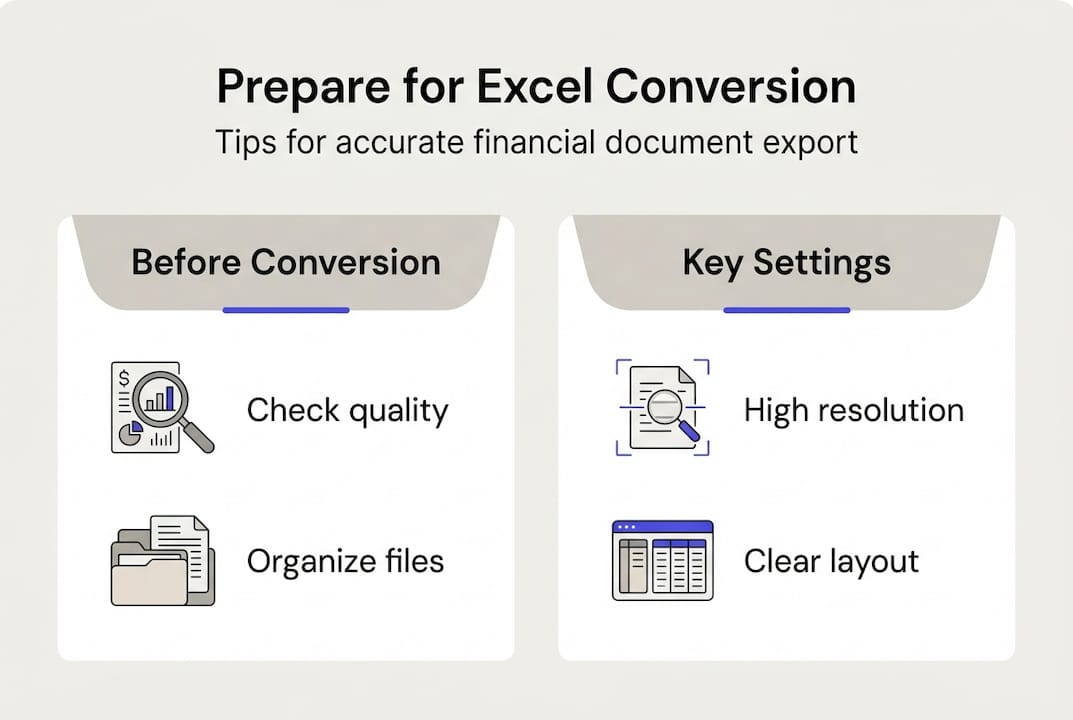
Consider your processing volume when selecting tools. Converting five bank statements monthly requires different solutions than processing 500 invoices weekly. High-volume scenarios justify investing in enterprise platforms or developing Python scripts, while occasional conversions work fine with manual methods or affordable web tools.
| Document type | Best conversion method | Typical use case |
|---|---|---|
| Digital bank statements (PDF) | Direct import or AI converter | Monthly reconciliation |
| Scanned invoices | OCR software | Accounts payable processing |
| Credit card reports | Automated extraction tools | Expense tracking |
| Mixed document batches | Python libraries or IDP platforms | Enterprise financial operations |
Step-by-step process to convert documents to Excel efficiently
Start by selecting your conversion method based on document type and volume. For digital PDFs with selectable text, Excel’s Get Data feature (Data tab > Get Data > From File > From PDF) often works well for simple tables. The import wizard previews data and lets you select specific tables or pages. This built-in approach handles straightforward conversions without additional software.

OCR or AI-powered tools become necessary for scanned documents or complex layouts. Upload your file to the conversion platform, which uses machine learning to identify tables, columns, and data types. A hybrid approach uses OCR/AI first, then Excel functions for analysis. Quality platforms like the PDF bank statement converter recognize financial document structures, automatically categorizing transactions, dates, and amounts into appropriate columns.
For batch processing multiple files, automation scripts save hours of repetitive work. Python libraries like Camelot and pdfplumber extract tabular data from PDFs programmatically. A simple script loops through a folder, converts each file, and outputs Excel spreadsheets with consistent formatting. This approach requires some coding knowledge but pays off quickly when processing dozens or hundreds of documents monthly.
Once data lands in Excel, clean and structure it for analysis. Remove header rows, footer text, and page numbers that conversion tools sometimes capture. Standardize date formats using Excel’s Text to Columns feature or the DATEVALUE function. Convert text numbers to actual numeric values by multiplying by 1 or using VALUE function. These cleanup steps ensure formulas and pivot tables work correctly.
Apply Excel functions to transform raw data into insights. Create pivot tables to summarize transactions by category, vendor, or time period. Use SUMIFS to calculate totals based on multiple criteria. Apply XIRR to irregular cash flow data for accurate return calculations. These analytical layers turn converted spreadsheets into decision-making tools rather than mere data repositories.
Pro Tip: Save conversion templates with pre-built formulas and pivot table structures. When new documents arrive, paste converted data into the template, and your analysis updates automatically without rebuilding calculations each time.
Implement a systematic file naming convention for converted spreadsheets. Include document type, date range, and version number (for example, BankStatement_Jan2026_v1.xlsx). This organization prevents confusion when multiple team members access shared files and makes audit trails clearer. Store original source documents alongside converted files for verification and compliance purposes.
- Identify document type and select appropriate conversion tool
- Upload or import file into conversion software or Excel
- Review preview and adjust table selection or OCR settings
- Export or save converted data as Excel file
- Clean data by removing headers, standardizing formats, and converting text to numbers
- Apply Excel functions and create pivot tables for analysis
- Validate accuracy against source documents
- Save with descriptive filename and backup to secure location
Common mistakes and troubleshooting tips when converting documents
Poor scan quality ranks as the top conversion killer. Faded text, skewed pages, and low resolution cause OCR engines to misread numbers, swap digits, or skip entire rows. Always preview scanned documents before conversion. If text appears blurry or difficult for you to read, the software will struggle too. Rescan at higher resolution or adjust brightness and contrast settings.
Data alignment errors happen when conversion tools misinterpret table structures. A single merged cell or unusual spacing can shift entire columns, placing amounts in date fields or descriptions in numeric columns. After conversion, scroll through the entire spreadsheet checking that data types match column headers. Sort by different columns to spot misaligned entries that break logical patterns.
Skipping backup steps invites disaster. Hard drives fail, files corrupt, and accidental deletions happen. Save original documents and converted spreadsheets to cloud storage or network drives with version control. Before making major changes to converted data, duplicate the file so you can revert if cleanup goes wrong. This simple habit prevents hours of rework.
High accuracy rates achieved by OCR reduce manual correction needs, but no tool reaches 100% perfection. Common issues include:
- Misreading similar characters (0 vs O, 1 vs I, 5 vs S)
- Incorrect decimal placement in currency amounts
- Missing data from poor contrast areas or page edges
- Wrong delimiters causing data to merge or split incorrectly
- Damaged or corrupted source files that fail mid-conversion
When conversion fails completely, check file permissions and encryption. Password-protected PDFs must be unlocked first. Some financial institutions encrypt statements requiring specific software to open. Corrupted files may need repair tools or re-downloading from the source. File size limits on web-based converters sometimes reject large multi-page documents, requiring you to split files or use desktop software instead.
Outdated conversion software misses improvements in accuracy and format support. Developers regularly update OCR algorithms and add compatibility for new document layouts. Check for updates quarterly and read release notes highlighting financial document enhancements. The benefits of converting documents multiply when tools recognize more statement formats and extract data more reliably.
Delimiter problems create chaos in CSV exports that you then open in Excel. Commas within currency amounts (like $1,234.56) confuse parsers expecting commas as field separators. Specify tab or semicolon delimiters instead, or use native Excel format (XLSX) to avoid parsing issues entirely. When opening CSV files, use Excel’s Text Import Wizard to preview and adjust delimiter settings before finalizing the import.
“The quality of your converted data depends entirely on preparation and verification. Garbage in, garbage out applies doubly to automated conversions. Invest time upfront in clean source files and validation afterward to ensure reliable financial analysis.”
Verifying converted data and preparing for financial analysis
Verification starts with spot-checking numeric totals against source documents. Pick several transactions at random and confirm amounts, dates, and descriptions match exactly. Calculate column totals in Excel and compare to statement totals or invoice summaries. Even small discrepancies signal conversion errors requiring investigation. A 99% accurate conversion still means 10 errors in 1,000 transactions, enough to distort analysis.
Excel’s sorting and filtering features expose anomalies invisible in raw data. Sort the amount column to find suspiciously large or small values. Filter date columns to catch entries outside expected ranges. Look for duplicate transactions that conversion tools sometimes create when processing multi-page documents. Text filters reveal inconsistent vendor names or category labels needing standardization.
Prepare summary tables that aggregate converted data for reporting. Create monthly totals, category breakdowns, and vendor spending analyses using SUMIF or pivot tables. These summaries make it easier to spot patterns and outliers. A sudden spike in office supply expenses or missing transaction dates becomes obvious in summary views but hides in thousands of raw rows.
Post-conversion use Excel functions like XIRR and pivot tables for FP&A. XIRR calculates internal rate of return for cash flows occurring at irregular intervals, essential for investment analysis and project evaluation. Pivot tables let you slice transaction data by multiple dimensions simultaneously, answering questions like “Which department spent most on travel in Q4?” without writing complex formulas.
Date and currency formatting consistency prevents calculation errors. Excel stores dates as numbers but displays them in various formats. Use the TEXT function or Format Cells dialog to standardize all dates to a single format (MM/DD/YYYY for American English). For currency, ensure all amounts use the same symbol and decimal places. Mixed currencies require conversion to a common denomination before summing or comparing values.
Build validation checks directly into your spreadsheets. Use conditional formatting to highlight negative balances, amounts exceeding thresholds, or dates outside fiscal periods. Create summary cells that count blank entries or flag potential duplicates. These automated checks catch errors faster than manual review and work consistently across multiple conversions.
| Verification step | Method | What to check |
|---|---|---|
| Numeric accuracy | Spot-check transactions | Amounts match source documents exactly |
| Completeness | Count rows and sum totals | All transactions present, totals reconcile |
| Data types | Sort and filter columns | Numbers are numeric, dates are date format |
| Consistency | Review category and vendor fields | Standardized naming, no typos |
| Anomalies | Conditional formatting | Outliers, duplicates, missing data |
Document your verification process for audit trails and team training. Note which checks you performed, any discrepancies found, and how you resolved them. This documentation helps when questions arise months later about specific transactions or conversion decisions. It also trains new team members on quality standards and verification procedures.
Pro Tip: Create a verification checklist template that team members complete for each conversion batch. Consistent checklists ensure nothing gets skipped and provide documentation that conversions met quality standards.
Optimize your financial document conversion with BankStatementFlow
Manual conversion methods work for occasional needs, but financial teams processing documents regularly need purpose-built automation. BankStatementFlow AI converters specialize in extracting data from bank statements, credit card reports, and invoices with up to 99% accuracy. The platform recognizes financial document structures automatically, categorizing transactions and formatting data for immediate analysis.
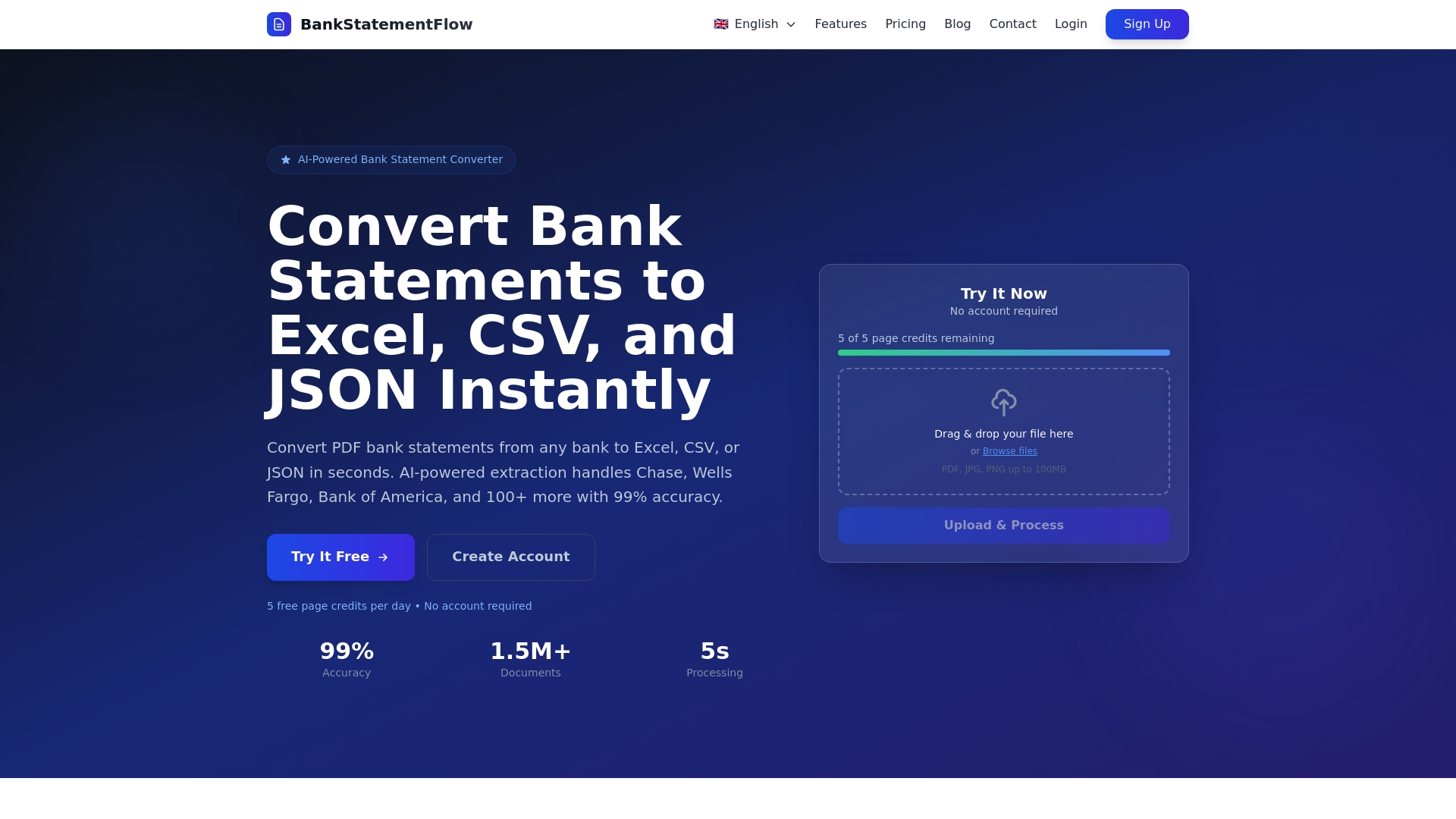
The PDF bank statement tool handles password-protected files and scanned images without requiring manual preprocessing. Batch processing converts hundreds of documents in minutes, freeing your team from repetitive data entry. Flexible export options deliver Excel, CSV, JSON, or XML formats matching your workflow requirements.
Integration capabilities extend conversion value beyond standalone spreadsheets. The QuickBooks integration guide shows how converted data flows directly into accounting systems, eliminating duplicate entry and reducing reconciliation time. API access lets developers embed conversion functionality into existing financial applications, creating seamless automated pipelines from document receipt to analyzed data.
FAQ
How do I choose the best tool for converting PDFs to Excel?
Evaluate your monthly document volume and whether you need batch processing or handle files individually. Consider how well tools integrate with your existing accounting software like QuickBooks or ERP systems. Look for platforms offering high accuracy rates, responsive customer support, and trial periods to test with your actual documents. PDF to Excel tool alternatives compare features and pricing across popular options.
Can I automate document conversion for large finance teams?
Yes, large teams automate batch processing with Python or IDP platforms designed for enterprise volumes. Python libraries like Camelot and pdfplumber handle hundreds of files through scheduled scripts. Enterprise Intelligent Document Processing platforms offer GUI-based automation, role-based access, and audit trails suitable for compliance requirements. Both approaches integrate with ERP systems and QuickBooks for end-to-end workflow automation.
What Excel functions are essential after converting financial documents?
XIRR calculates returns on cash flows occurring at irregular intervals, essential for investment and project analysis. Pivot tables summarize and analyze large transaction datasets, letting you slice data by category, time period, or vendor instantly. SUMIFS and COUNTIFS aggregate data based on multiple criteria for detailed reporting. Excel functions like XIRR and pivot tables transform converted data into actionable financial insights.
How do I handle conversion errors in financial data?
Spot-check converted data against source documents to identify error patterns like swapped digits or misplaced decimals. Use Excel’s sorting and conditional formatting to highlight anomalies such as duplicate transactions or amounts outside normal ranges. For systematic errors affecting multiple files, adjust OCR settings or try alternative conversion tools. Always maintain original source files so you can re-convert with different settings or manually correct specific entries while preserving an audit trail.
What file formats work best for financial document conversion?
Digital PDFs with selectable text convert most reliably since data extraction doesn’t require OCR interpretation. Native Excel files or CSV exports from financial systems need minimal processing. Scanned PDFs and images require OCR, so higher resolution (300 DPI minimum) improves accuracy. Avoid proprietary formats requiring specialized software to open. When receiving documents from banks or vendors, request digital PDFs rather than scanned copies whenever possible to simplify conversion and improve data quality.
Recommended
- Why Convert Financial Documents to Excel? - BankStatementFlow Blog
- Master financial document organization: 99% accuracy guide - BankStatementFlow Blog
- Financial data formats for efficient conversion in 2026 - BankStatementFlow Blog
- Top 4 bankstatements2excel.com Alternatives 2026 - BankStatementFlow Blog