How to Export Financial Data to Excel Effortlessly

Sorting through scattered invoices, complex tax returns, and a sea of bank statements can quickly become overwhelming for any financial analyst or accountant. For professionals worldwide aiming to create reliable reports, structured data must move efficiently from original documents into a usable Excel format. By using a combination of smart preparation, careful field selection, and AI-powered accuracy, you can convert challenging records into actionable insights with far less manual effort.
Table of Contents
- Step 1: Prepare Financial Documents For Extraction
- Step 2: Select Desired Data Fields And Formats
- Step 3: Run AI-Powered Extraction For Accuracy
- Step 4: Export Structured Data Directly To Excel
- Step 5: Validate Exported Excel Files For Completeness
Quick Summary
| Key Insight | Explanation |
|---|---|
| 1. Organize documents effectively | Systematically sort and arrange financial records for smoother data extraction and to improve accuracy. |
| 2. Select relevant data fields carefully | Identify critical financial metrics to include for your analysis, enhancing the clarity of your reports. |
| 3. Utilize AI for data extraction | Implement AI techniques to automate data processing, increasing speed and reducing human error in financial reporting. |
| 4. Validate exported data thoroughly | Rigorously check exported Excel files for accuracy and completeness to ensure reliable financial insights. |
| 5. Maintain organized digital workspace | Create a designated folder for files to track progress and keep financial documents orderly during the extraction process. |
Step 1: Prepare financial documents for extraction
Preparing financial documents for extraction requires strategic organization and careful handling to ensure smooth data processing. Your goal in this step is to transform scattered financial records into a format ready for accurate digital conversion.
Start by systematically gathering all relevant financial documents, which might include bank statements, tax returns, invoices, expense reports, and transaction logs. Multistage document preprocessing techniques are critical for handling complex financial materials with varying formats and quality.
To streamline your preparation, follow these essential steps:
- Sort documents chronologically or by financial category
- Remove staples and paper clips that might obstruct scanning
- Organize documents in a consistent, logical order
- Check document quality for legibility and completeness
- Separate different document types to facilitate targeted extraction
If documents are scanned or digital, ensure they meet basic quality standards. High-resolution images with clear text and minimal background noise significantly improve data extraction accuracy. Careful data collection template design helps define the scope and inclusion criteria for your financial data.
Consistent document preparation reduces extraction errors and saves significant time during processing.
Pro tip: Create a dedicated folder or digital workspace for your financial documents to maintain organization and track your extraction progress systematically.
Step 2: Select desired data fields and formats
Selecting the right data fields and formats is crucial for creating meaningful financial exports. Your goal in this step is to identify and configure the specific financial information you want to transfer into your Excel spreadsheet.

Pandas DataFrame export methods provide powerful tools for customizing your financial data extraction. Begin by reviewing your source documents and determining which columns or data points are most relevant to your analysis or reporting needs.
Consider these strategies for effective data field selection:
- Identify key financial metrics such as transaction amounts, dates, and categories
- Review data completeness for each potential field
- Assess the relevance of each data column to your specific objectives
- Check data consistency across different document sources
- Prioritize critical financial indicators
Excel export functions allow you to customize how your data appears. This means you can control decimal precision, date formatting, and how empty or null values are represented.
Carefully selected data fields transform raw financial information into actionable insights.
Pro tip: Create a preliminary mapping of your desired fields before beginning the export process to streamline your data selection and minimize potential errors.
Step 3: Run AI-powered extraction for accuracy
Running an AI-powered extraction process transforms your financial data processing from manual labor to intelligent automation. Your objective is to leverage advanced machine learning techniques to ensure precise and reliable data conversion.
Machine learning techniques offer sophisticated methods for detecting and resolving potential data inconsistencies. These intelligent systems can identify anomalies, verify transaction details, and flag potentially fraudulent entries with remarkable accuracy.
Implement your AI extraction process through these strategic steps:
- Configure machine learning parameters to match your specific financial document types
- Set validation thresholds for data accuracy and completeness
- Enable anomaly detection algorithms
- Choose appropriate deep learning models for your dataset
- Establish confidence scoring for extracted information
Large Language Models can significantly enhance your extraction accuracy by applying contextual understanding and multi-stage processing. These advanced AI systems go beyond simple text recognition, analyzing complex fiscal documents with nuanced comprehension.
Here’s a summary of key advantages of using AI versus manual methods in financial data extraction:
| Aspect | Manual Extraction | AI-Powered Extraction |
|---|---|---|
| Speed | Slow, labor-intensive | Fast, real-time results |
| Accuracy | Prone to human error | High, with automated checks |
| Scalability | Limited to small datasets | Easily handles large volumes |
| Fraud Detection | Basic, requires expertise | Advanced, uses anomaly algorithms |
AI-powered extraction reduces manual errors and provides unprecedented data integrity for financial reporting.
Pro tip: Always run a test extraction on a small sample of documents first to calibrate your AI model and validate its performance before processing your entire dataset.
Step 4: Export structured data directly to Excel
Exporting your meticulously processed financial data to Excel represents the final transformative step in your data management journey. Your objective is to convert extracted information into a clean, usable spreadsheet that enables immediate analysis and reporting.
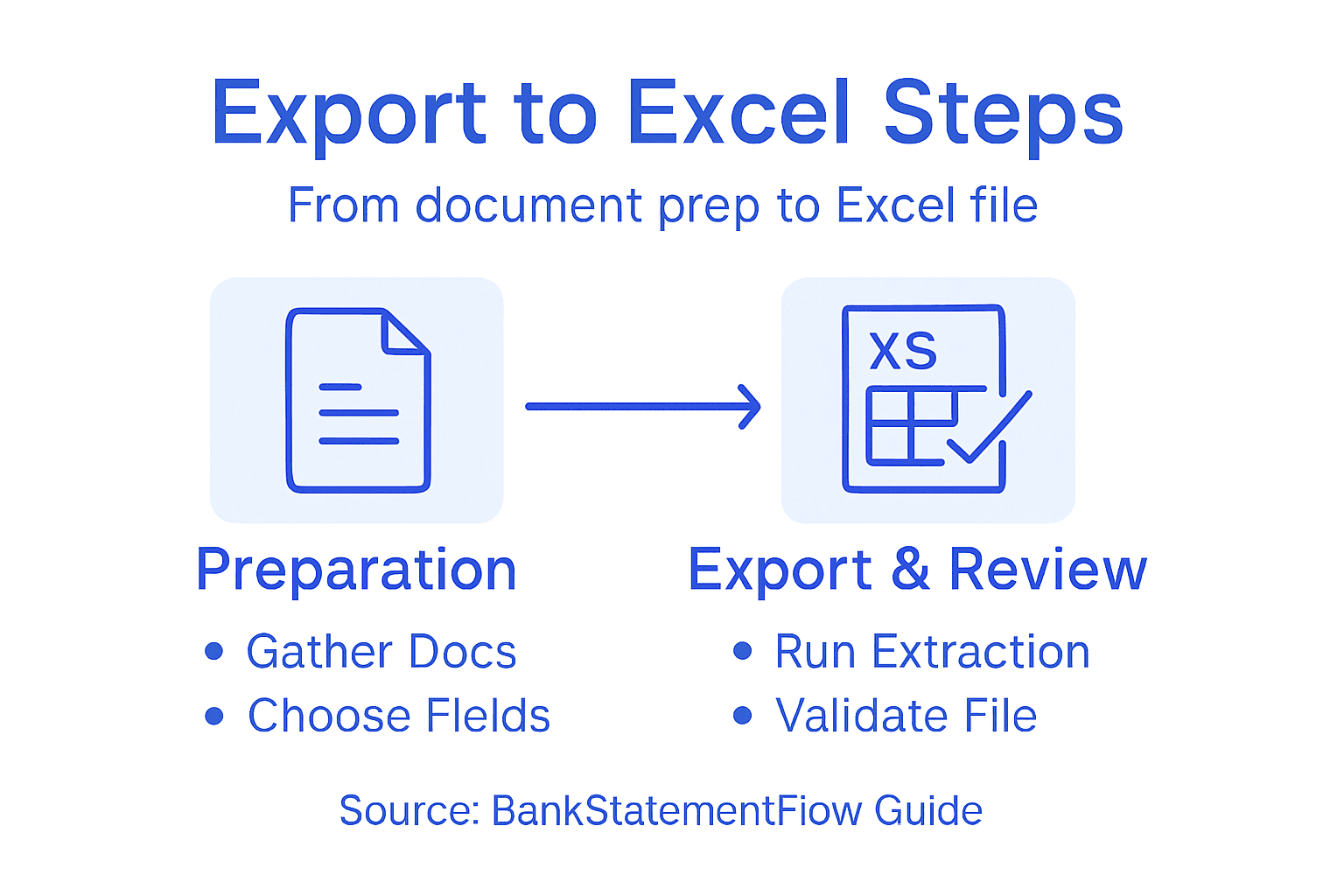
Pandas DataFrame export methods provide powerful tools for seamlessly transferring your structured data. These techniques allow precise control over how your financial information appears in the final Excel document, including sheet naming, column selection, and formatting preferences.
Follow these key steps for a smooth Excel export:
- Select your preferred export method
- Verify data integrity before final export
- Configure column formatting for financial readability
- Name output spreadsheet strategically
- Choose appropriate file destination
Programmatic data export techniques can dramatically reduce manual handling errors and support consistent reporting processes. Automated export methods ensure your financial data transitions smoothly from extraction to analysis.
Below is a quick reference for common financial export file types and their typical use cases:
| File Type | Main Purpose | Typical Use Case |
|---|---|---|
| Excel (.xlsx) | Analysis and reporting | Financial modeling, pivot tables |
| CSV (.csv) | Data transfer and storage | Import/export between platforms |
| PDF (.pdf) | Fixed-format sharing | Official statements, archiving |
Precise Excel export transforms raw data into actionable financial insights.
Pro tip: Always create a backup of your original dataset before performing the final export to protect against potential formatting or translation errors.
Step 5: Validate exported Excel files for completeness
Validating your exported financial data ensures the accuracy and reliability of your final spreadsheet. Your goal is to meticulously review the exported Excel file, confirming that all critical information has been transferred correctly and completely.
Data validation techniques provide structured approaches to verify your financial dataset’s integrity. These methods help identify potential discrepancies, missing entries, or formatting inconsistencies that could compromise your analysis.
Implement these comprehensive validation strategies:
- Cross-check total amounts against original source documents
- Verify column headers and data field mappings
- Test numerical calculations for accuracy
- Review data formatting consistency
- Validate date and numeric ranges
Economic data validation tools can automate parts of this verification process, offering advanced features to refresh and confirm data completeness. These specialized add-ins help financial professionals maintain high standards of data quality and reliability.
Thorough validation transforms raw data exports into trustworthy financial insights.
Pro tip: Create a validation checklist specific to your financial documents to ensure consistent and systematic review across different data exports.
Streamline Your Financial Data Export with AI-Powered Automation
Exporting financial data to Excel involves tackling challenges like document organization, selecting precise data fields, ensuring extraction accuracy, and validating results. These pain points demand a solution that reduces manual effort and error while accelerating the entire process. The article highlights critical concepts such as AI-powered extraction, anomaly detection, and structured Excel export that resonate with the needs of modern financial teams and accounting professionals.
BankStatementFlow offers a powerful platform designed to solve these exact challenges. By automating data extraction from varied financial documents, including encrypted PDFs and phone images, our SaaS solution delivers up to 99% accuracy with rapid processing speeds. Harness advanced machine learning and customizable export options to seamlessly convert your unstructured financial data into well-organized Excel spreadsheets, CSV files, and more. Discover how our system supports multi-language documents and integrates via API to fit effortlessly into your existing workflows.
Start eliminating costly manual errors and time-consuming tasks today by visiting BankStatementFlow. Experience firsthand how AI-driven financial document processing can transform your data export workflow into a reliable, scalable asset. For more details on our seamless data conversion capabilities, explore BankStatementFlow Solutions and learn how to optimize your financial record keeping.
Take control of your financial data exports now to boost accuracy and efficiency.
Frequently Asked Questions
How do I prepare my financial documents for extraction?
To prepare your financial documents, start by systematically gathering all relevant records such as bank statements and tax returns. Sort them chronologically or by category, remove any staples, and check their quality before beginning the extraction process.
What data fields should I select when exporting to Excel?
When exporting your financial data, identify key financial metrics that are relevant to your analysis, such as transaction amounts and dates. Create a mapping of your desired fields to streamline the selection process and ensure you capture all essential information.
How can I use AI to improve the accuracy of my data extraction?
Utilize AI-powered extraction to automate and enhance accuracy during data processing. Configure machine learning parameters specific to your financial documents, and enable anomaly detection to flag any discrepancies before finalizing your export.
What steps should I take to validate my exported Excel data?
To validate your exported data, cross-check total amounts against your original source documents and verify the consistency of column headers and mappings. Perform these checks to ensure data integrity and reduce errors, which can be critical for accurate reporting.
How do I export my structured financial data to Excel?
To export your structured financial data to Excel, select your preferred export method and ensure data integrity before final export. Format the columns for readability, name the output spreadsheet, and choose a suitable file destination to complete the process efficiently.
Recommended
- How to Automate Financial Documents for Fast, Accurate Data - BankStatementFlow Blog
- PDF Inventory to Excel & CSV Converter | Free AI Tool
- Automated Expense Tracking: Simplify Your Business Financial Management - BankStatementFlow Blog
- Staying Compliant: Financial Automation and Regulatory Requirements - BankStatementFlow Blog
- Step-by-step analiza tržišta zlata za uspješno ulaganje